Change the Period of an Expense Posting
After posting a payable and cutting the check, the team realizes that the period for the expense is incorrect.
This process will create a single Journal Entry that will move the expense from the incorrect period, through the Deferred Expense account and into the correct period. Since this creates a single Journal Entry, there will not be an out of balance from forgetting to post a second Journal Entry.
Process
Use a Journal Entry for correcting an incorrect expense period. For this example, we are moving the expense from period 2021.01 to 2021.02.
We are going to use the option “Reverse on” for this posting. When we use this option, the Posting Period has to be a lesser period than the Reverse Period.
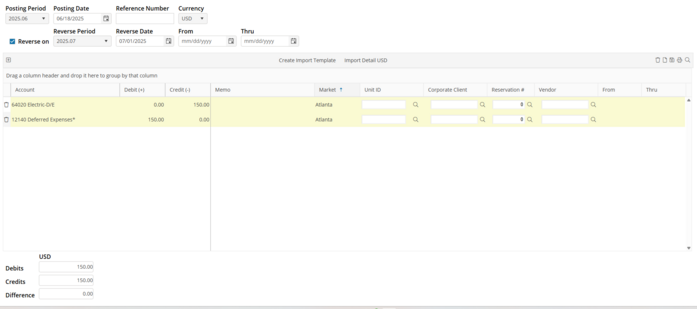
JE Header
Posting Period : Select the first period that will be adjusted (2021.01)
Reverse on : Populate this indicator
Reverse Period : Select the second period that will be adjusted (2021.02)
Unit : Make sure to select the unit so that this will be recognized on all financial reports
Vendor : Select the vendor that was used on the original Payable.
JE Grid
Expense : Select the expense account that was used on the original Payable. Since we are removing the expense from period 2021.01, we will credit this period. If we were moving the expense from period 2021.02 to 2021.01, we would debit the expense.
Deferred Expense : Select the Deferred Expense account. Select the opposite sign (debit/credit) of the expense line.
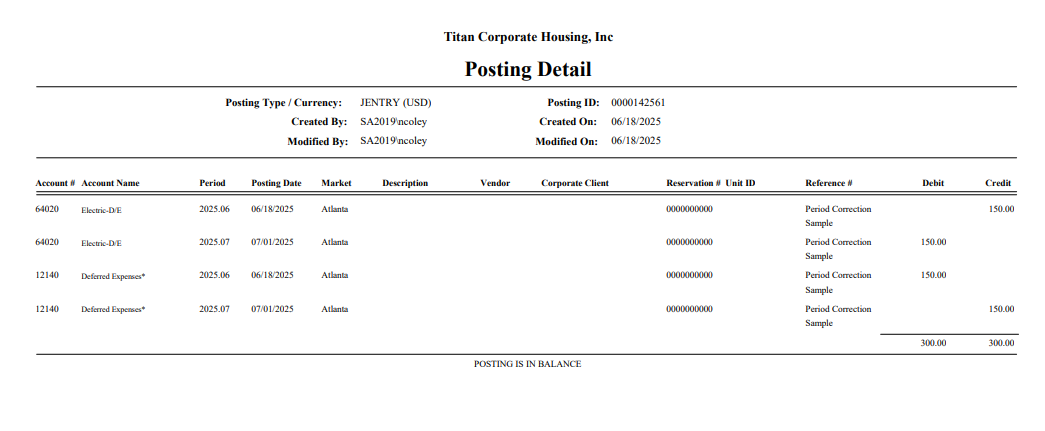
Posted Detail
After posting the Journal Entry, click on the preview option. The posting details will be displayed.