
Daily Stats
The Daily Stats reports were created to replace the statistics for occupied, unit count, occupancy, and ADR that are currently provided by the Statistics in the Reservation section of the navigation bar in Oscar (in the calendar). At this point, the Daily Stats do not include reports for Resident Activity (arrivals, departures, etc.).
Unlike the existing Statistics in the Reservation section, the Daily Stats reports use the exact same methodology and calculations as those employed in the Comparative Statistics module in the Management section. (See Comparative Statistics Report documentation for the base data and the calculated statistics.)
When using the Transfer Module and a resident transfers from one unit to another, if an invoice has been generated on the first reservation that includes charges for dates on the second reservation, at the point of committing the transfer, those charges are added to the second reservation and credits for them are automatically generated on the first reservation.
If these credits are not included in calculating revenue, revenue will be overstated. All statistics reports automatically include transfer credits for rent in calculating projected rent revenue.
Additionally, a filter option is available on the Daily and Comparative Stats reports to include all rent credits if desired.
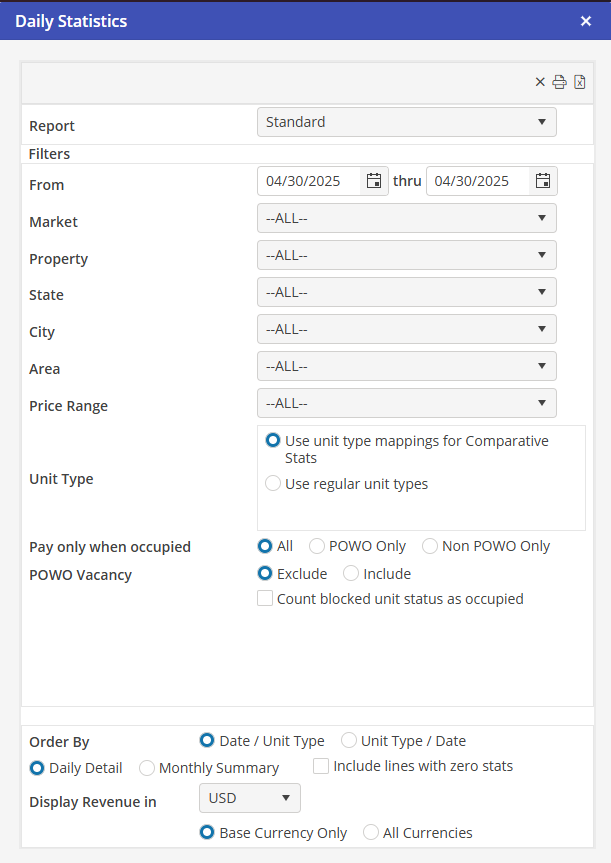
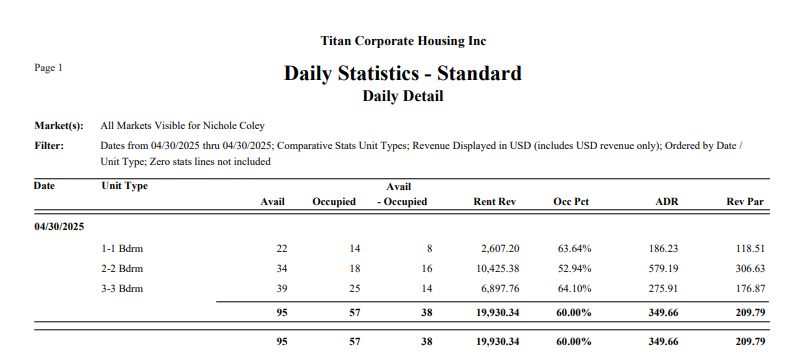
There are four Daily Stats reports; Standard, Standard-Day Detail, Corporate Client and Corporate Client-Day Detail.
Access to all four reports is via the Management Section / Financial Reports /Daily Stats.
Standard
The Standard daily stats include both the base data (available units, occupied units, available minus occupied units, and rent revenue) and the calculated stats (occupancy percent, ADR, and RevPar) for each day of the selected date range, for each unit type.
There are two options for unit type: The unit type mappings that were set up for Comparative Stats, or the regular unit types that have been set up in Oscar.
There are two options for ordering: Date / Unit Type, or Unit Type /Date. For the first, summary data is provided for each day; for the second, summary data is provided for each unit type.
To compare the data returned by the Daily Stats to those returned by the Comparative Stats, run the Daily Stats for a single market for a single month (enter the first day of the month and the last day of the month), select the Comparative Stats unit type option, and order by Date / Unit Type option.
Then run the Comparative Stats for the same market. Set the Through Date to the first day of the month used for the Daily Stats, and select the Base Data Option.
All of the grand totals and the unit type totals in the first column (Month to Date) on the Comparative Stats should match those of the first day of the Daily Stats.
All of the grand totals in the second column (Current) on the Comparative Stats should match those of the grand totals on the Daily Stats. (Note that the rent revenue figure may be off by a few pennies due to rounding issues. The amount should be negligible and have no effect the ADR stats.)
Standard- Day Detail
The Standard– Day Detail report provides a listing of all units and reservations that are included in calculating the base statistics (available, occupied, and total rent revenue) on the Standard report for a single day. Information on unit contracts (which affect the availability figure) is included, along with information on reservation arrival and departure dates.
This report was created to allow users to see exactly what comprises the Daily Stats figures.
An asterisk next to a unit indicates that, although the unit is included in the stats, it is currently marked as inactive. Also, note that if a reservation number is included with the “from” and “thru” dates missing, it means that the reservation is not in the unit on that day (based on the arrival and departure dates), but is generating rental revenue (based on the bill from and bill to dates).
Corporate Client
The Corporate Client daily stats are similar to the Standard daily stats, except that they are calculated for a single corporate client (with or without any sub corporate clients).
The user must select a corporate client to run this report.
Note that the available and occupied figures are always exactly the same when running the Corporate Client daily stats (i.e., occupancy is always considered to be 100%).
Corporate Client– Day Detail
The Corporate Client– Day Detail report is similar to the Standard– Day Detail report, except that it does not include any information on unit contracts.
Report Key
* Unit is inactive
Missing dates-From and thru dates for reservations indicate the unit is not occupied however it is being invoiced.