
Use as an Invoice Report
Invoice Report
Use the Financial > G/L Transactions report with the following options to create an invoice report.
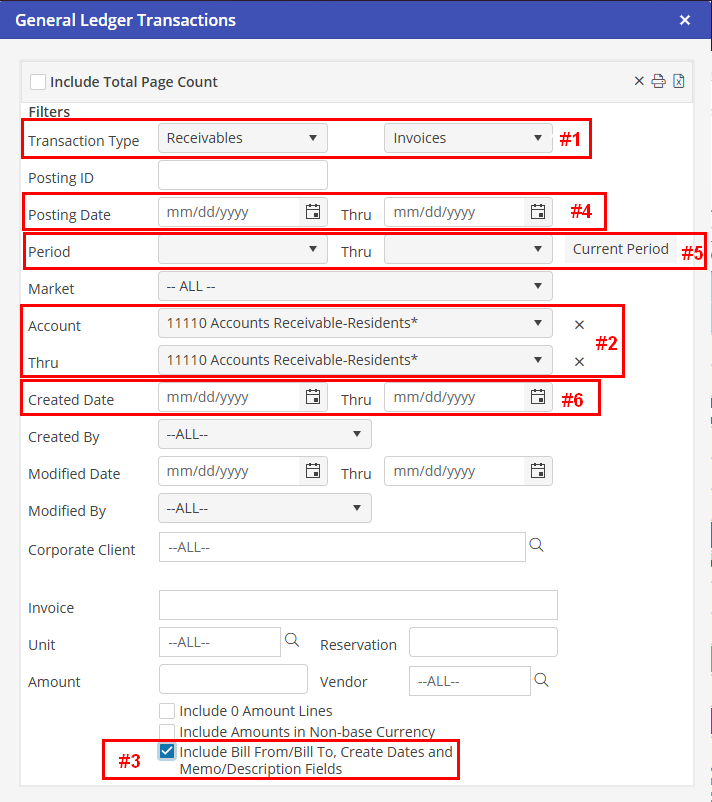
Filter Criteria
#1 : Transaction Type
In the Transaction Type, select “Receivables”. A second drop-down will appear that gives Receivable Transactions. Select “Invoices” in this drop-down.
#2 : Account
Select the “Accounts Receivable” or “Debtors” account in both Account drop-downs. Please note that the account number may be different in your Chart of Accounts. This will return a single Accounts Receivable line for each invoice returned on the report.
To include the complete posting for the invoice(s), leave the account drop-downs blank. This will include all of the posting lines from each invoice.
#3 : Bill From/Bill To, Create Dates and Memo/Description
Populate the “Include Bill From/Bill To, Create Dates and Memo/Description fields” indicator. This will include the service dates that the invoice covers, the posting date, the due date, memo and description fields from the invoice posting.
Date Criteria
Select one of the below options for dates. If the report is run with no dates selected, all invoices that have been created in Oscar Enterprise will be returned.
#4 : Posting Date
Use the Posting Date option to return invoices by Posting Date. The Posting Date is the date that was selected when posting the invoices. This date will correspond to the A/R Aging report, when run by dates.
#5 : Period
Use the Period option to return invoices by Financial Period. The Period is the Period that was selected when posting the invoices. The Financial Period will correspond to the Accounts Receivable account on both the Balance Sheet and the Trial Balance.
#6 : Created Date
Use the Created Date option to return invoices by the date they were posted. The Created Date is the system date of the computer when the invoices were posted. The system date will not correspond to any other report in the Oscar Enterprise application.