
Activities Card
Activities are events, or appointments, which are performed with or for a Prospect. These would include meetings, phone calls and conferences.
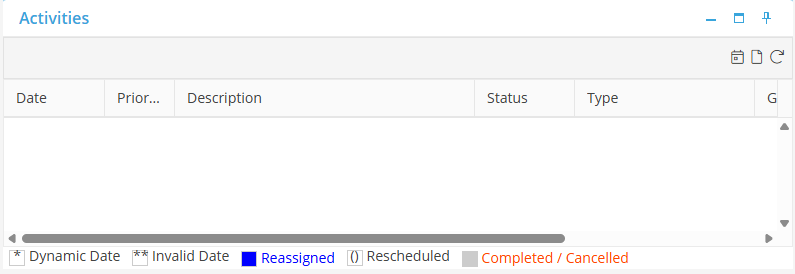
View an Activity
To view an Activity, double on the associated line.
Sort by any of the Activities columns by clicking the column header.
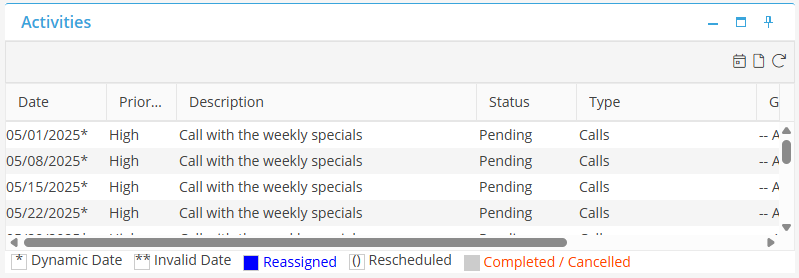
Add an Activity
To add an Activity for a Prospect, select  in the upper right hand corner of the Activities card. This will open a new Activity Definition screen.
in the upper right hand corner of the Activities card. This will open a new Activity Definition screen.Link To - This will default to Prospect. Leave this field as its default.
Prospect - This field will default to the Prospect in which the Activity was added
Priority - Select from High, Medium or Low as the Priority for this Activity.
Description - Type in Activity details here. Be as descriptive as possible. 250 character limit.
Task Type - Select the Activity Type to associate with this Activity. The Activity may be saved without a Task Type. Only items that have been added as Sales Activity Types will be available in this list.
Assign To Market - The Users Default Market will auto populate. This field may not be changed.
Group - The Group will default to the Sales Task Assignee group that was created. Select a different Group if required. Refer to page 4.
Assign To - Select an Assign to for this Activity. The Activity may be saved without an Assign to selected.
Frequency - Select the frequency at which the Activity should repeat. Select from; Monthly, Weekly, Daily or Single.
Start On - Select the Start on option. Select from; Anniversary Date, Day of the Week, Day of the Month or First Day of the Month. If the Frequency selected was Single, Anniversary Date will be the only option available.
Start Date and Time - Select a Start date and Time for the Activity.
End Date and Time - Select an End date and Time for the Activity. If the Frequency selected was Single, End date will default to the Start date.