Adding Tax to Reservations
If Tax profiles are being applied for the first time to an existing Reservation, use the Schedule Board to manage this process. Go to each Reservation, click on the Tenant within the Tenant Card. Once the tenant is open, navigate to the Rent Information Card.

-
If the taxable box is not checked, check it and Save on the left hand menu.

-
If the taxable is already checked, un-check it, Save, re-check the taxable box, Save. This will regenerate the Resident Ledger lines with the Tax Profile.
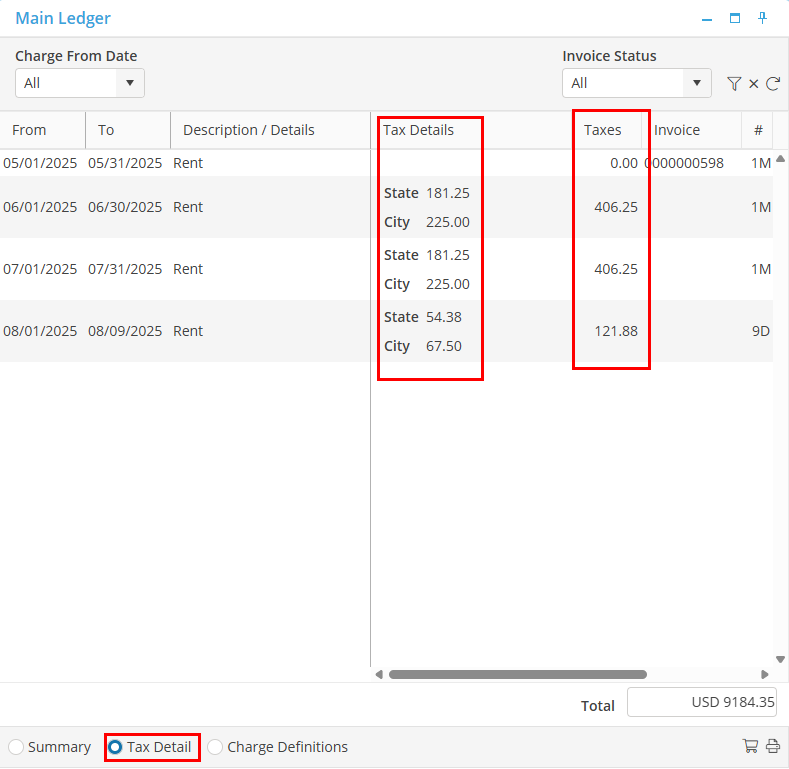
To verify that the Taxes are being applied, go to the Resident Ledger and select “Tax Detail”. The User will seethe columns for tax details as well as the total amount for taxes.
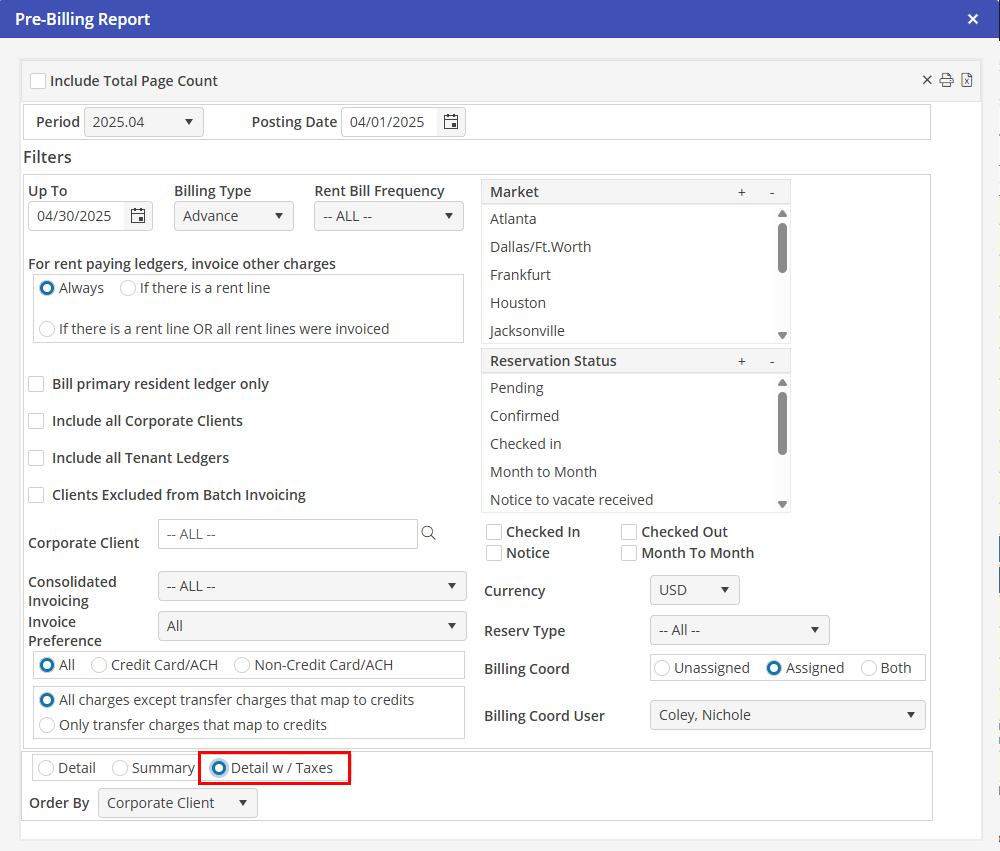
Check that all taxes are entered and reporting properly on the Reservations. When all booked Reservations have been updated, print the Pre-Billing report (located: A/R > Pre-Billing Report) with the button “Detail w/Taxes” checked for the next billing cycle. Audit each Reservation for the percentage tax item as well as the Other Charge Tax item that was added for the room tax.