Auto-Clearing of Checks
The application will auto-clear checks that are contained within a spreadsheet. This would typically be obtained from an online banking portal.
At this time, only transactions that completely match will be cleared from the Bank Reconciliation process.
Import Template
The Import Template must contain the following fields, in order to match with the Credits/Debits in the system.
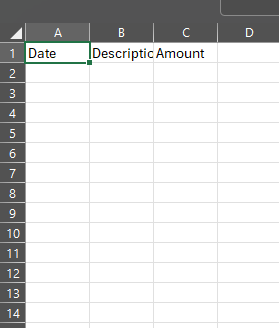
This file must be saved as a CSV file.
Importing Template
After the Import template has been created, click on the “Auto Clearing” link in the upper right hand corner of the Bank Reconciliation process.

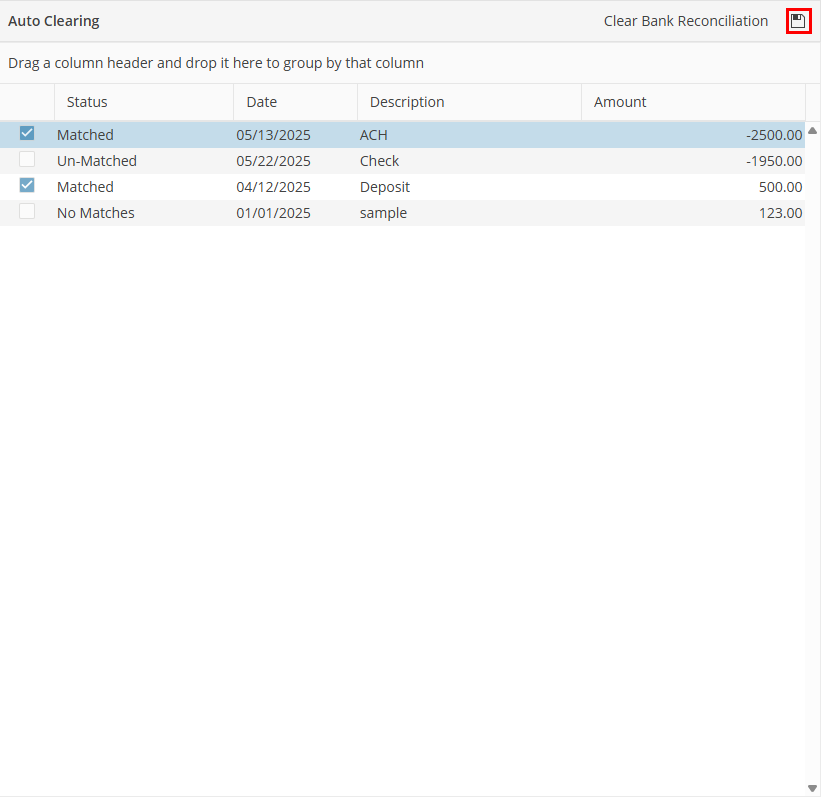
Next, click the  link. This will auto initiate the clearing process. Once the Template has been imported, the details will be displayed in the left hand grid of the screen. This will contain all entries that were contained in the spreadsheet, and will display either a Matched, Un-Matched, or No Matches status.
link. This will auto initiate the clearing process. Once the Template has been imported, the details will be displayed in the left hand grid of the screen. This will contain all entries that were contained in the spreadsheet, and will display either a Matched, Un-Matched, or No Matches status. 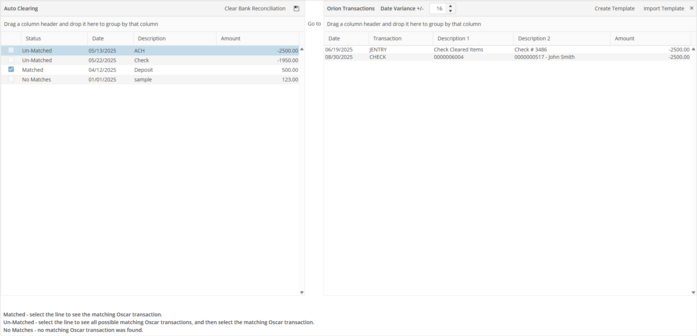
For those that have been matched, no action is needed.
For those that have Un-Matched listed as the status, click on the line from the grid on the left, labeled "Auto Clearing." This will display possible matches in the right hand side of the screen, labeled "Orion Transactions." Make your selection in the Orion Transactions grid. Orion will verify that you want to match the Orion Transaction with the Auto Clearing listing. Click 'Yes'.
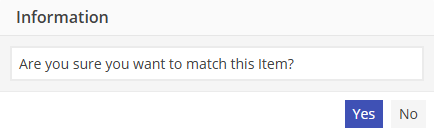
Orion will now display the status as Matched.
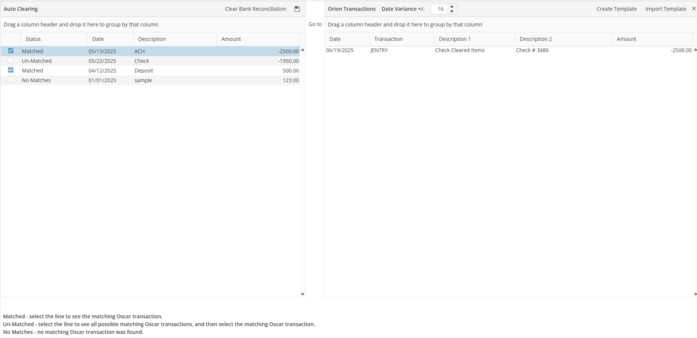
Once all Un-Matched items have been addressed, click the save icon in the Auto Clearing grid.