
CustX - Invoices
A/R > Other > Custom Export Module >> Invoice Exports
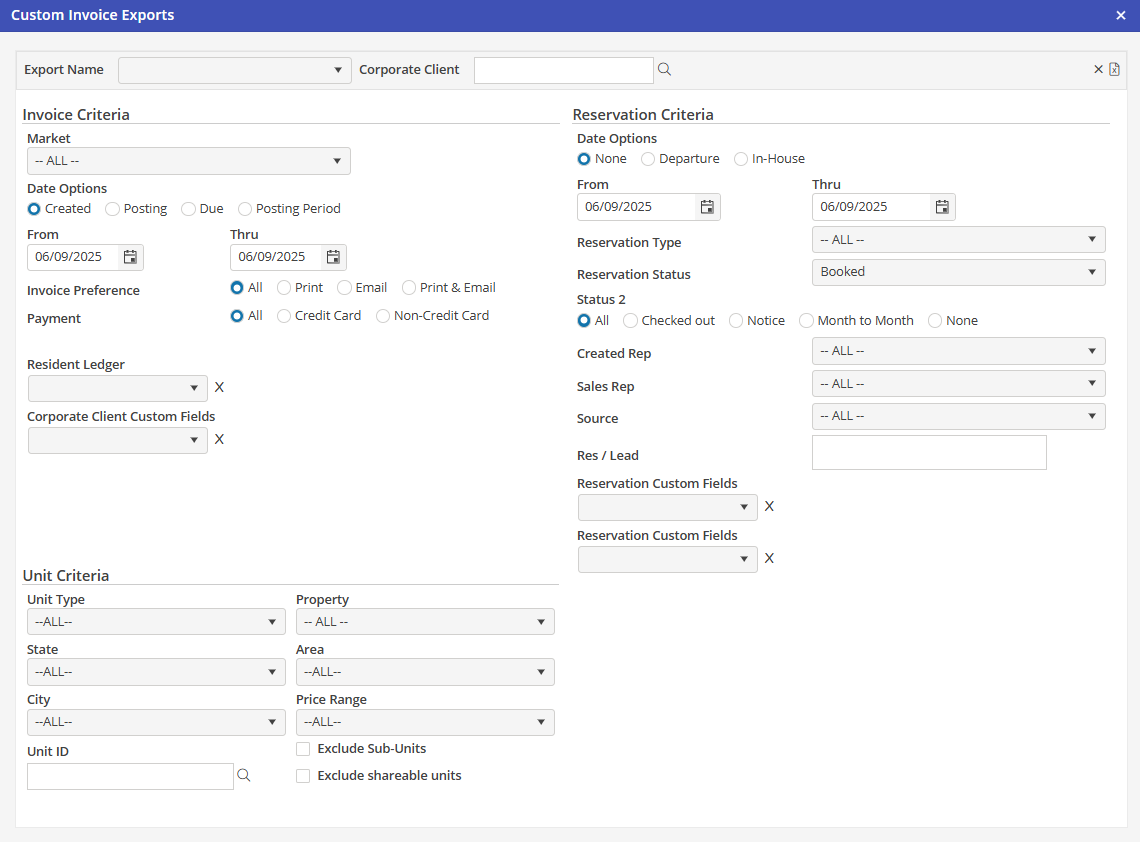
Export Name
Select the export to run. All created custom Invoice export templates will be available to be selected here.
Corporate Client
Select the Corporate Client for the export here. If the report was made for a specific Corporate Client, and that Corporate Client was selected on the template, the Corporate Client will be auto populated here. To run the report for a different Corporate Client, select the Corporate Client here.
Invoice Criteria
Market : Select a specific Market if desired for the Export.
Date Options : Select Created, Posting, Due or Posting Period. Also, select the date, or date range.
Invoice Preference : Select which Invoice Preference to include. All will select all ledgers regardless of the selection on the ledger and is the default upon opening the Custom Invoice Exports.
Payment : Choose the payment type for the Reservation. All will select all ledgers regardless of the selection on the ledger and is the default upon opening the Custom Invoice Exports. This option is found on the resident ledger/info tab
Resident Ledger Custom Fields : Select a Resident Ledger Custom Field to filter the export by. After a Custom Field is selected, additional options will allow the user to select Equal, Like, Empty or Not Empty. The User will then type in the search keyword.
Corporate Client Custom Fields : Select a Corporate Client Custom Field to filter the export by. After a Custom Field is selected, additional options will allow the user to select Equal, Like, Empty or Not Empty. The User will then type in the search keyword.
Unit Filters
Select any combination of the five Unit filters here.
Reservation Criteria
Date Options : Select from None, Departure or In-House and enter dates.
Reservation Type : Select the Reservation Type. Available options are listed from Reservation Types located in Program Settings > Reservations > Types.
Reservation Status : Choose the status of the reservation. Choices available are Booked and Cancelled.
Reservation Status 2 : Select the second reservation status here. This is the check box status on the reservation.
Created Rep : Choose the rep that created the reservation.
Sales Rep : Choose the rep who received credit for the reservation.
Source : Choose the reservation source here.
Res/Lead : Choose a specific Reservation or Lead number here.
Reservation Custom Fields : Choose Reservation Custom Fields here. After selection a reservation custom field, select Equal, Like, Empty or Not Empty. Also, enter in the search keyword. It is possible to search by up to 2 custom fields simultaneously.
Reset
This option resets the entire Custom Invoice Exports screen to the default unselected form.
Export
After choosing the export options, select this option to view the data in Excel. The formatted spreadsheet will open in Excel. Select “Save As” to save the export and choose a name and location to save.