Import
Journal Entries may be imported into the Oscar Orion application. This is beneficial for large Journal Entries that occur monthly, such as payroll.
Create Template - Click the  option on the Journal Entry screen. This will create an Excel import template for importing Journal Entries. Select a location to save the import template. This template file must be saved as an .XLS file.
option on the Journal Entry screen. This will create an Excel import template for importing Journal Entries. Select a location to save the import template. This template file must be saved as an .XLS file. 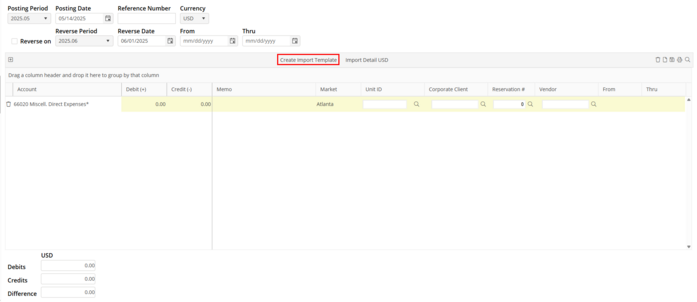
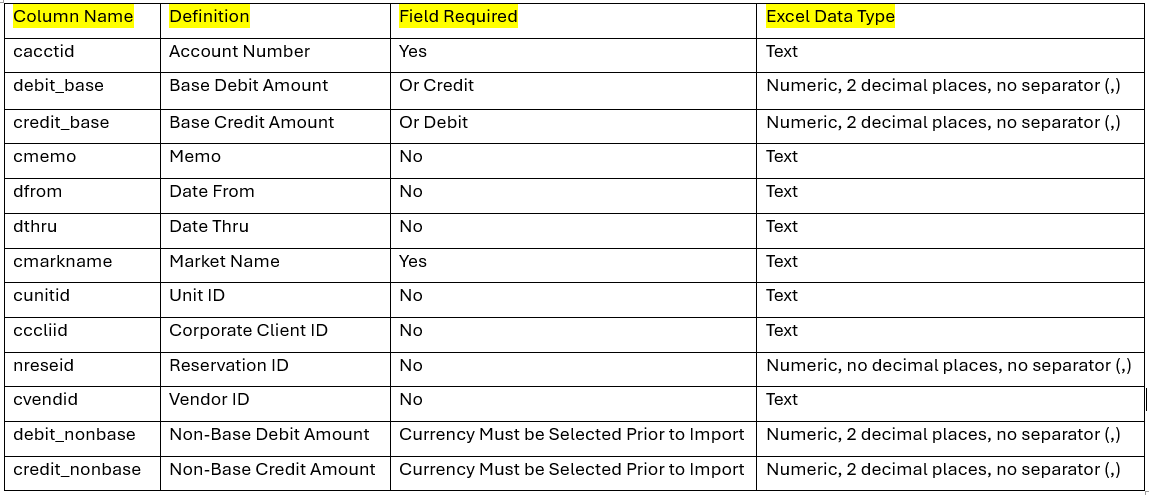
Populate Template - Using the Import Requirements below, populate the fields on the Excel import template. This may be manually updated or copied and pasted from another application or Excel file. Account numbers must not contain leading spaces to be imported correctly. If an account number has leading zeros and only contains numbers , “001001”, an apostrophe (‘) must be placed in front of the account number on the Excel import template to maintain the zeros. Example: ‘001001. Verify that the first worksheet is titled JE-IMPORTTEMPLATE. If it is not, rename it JE-IMPORTTEMPLATE. There can only be a single worksheet. Save the JE import template file. This may be saved as an .XLS file or an .XLSX file.
Import Template - After the Excel import template has been completed, click to create a new Journal Entry. Click to import the Excel import template. Select the Excel import template from the location where it was saved. The Journal Entry detail will now load into the Journal Entry screen. Edit Journal Entry detail lines if needed. If a Unit is selected on a line and the Market does not match, the Market will take precedence and the Unit will be removed.
Import Requirements - The following requirements must be met for a successful import;
1. A single worksheet titled JE-IMPORTTEMPLATE
2. No formulas in any fields
3. No apostrophes in any fields
4. The following columns must exist on the Excel spreadsheet that will be imported: