
Leads
If Leads and Reservations is selected within Schedule Board Filter > Display Filter > Show, Leads will be displayed on the Schedule Board.
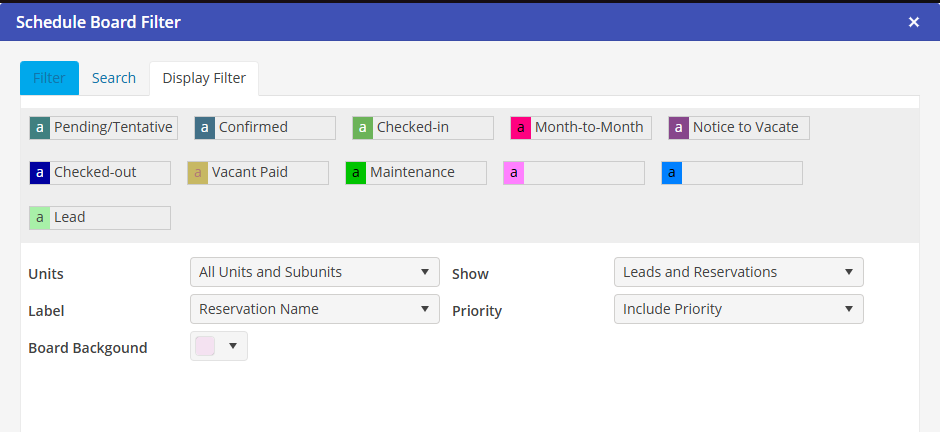
Leads will be displayed under the associated Unit. Click directly on the Lead display to access the Lead.

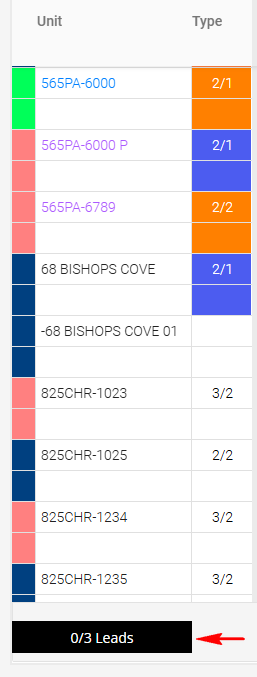
Click here to open the Lead Management screen. All leads that fall within the selected Schedule Board dates will be included.
Leads that have no Unit selection will have a gray background. These leads may be placed in a Unit by selecting the Lead and the Place option. The Schedule Board will appear in edit mode and allow placement. This will update the Lead with a Unit but maintain its “Lead” status.
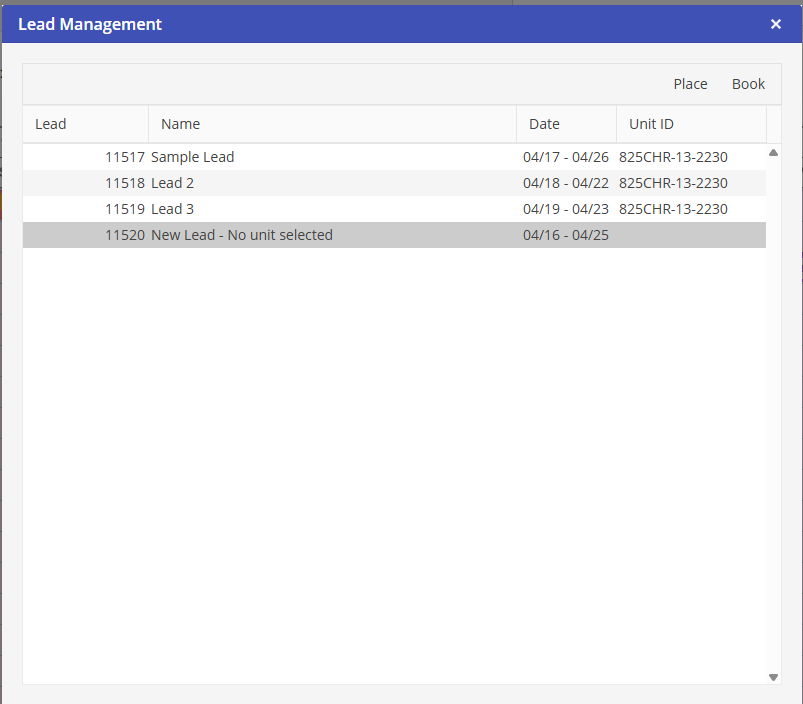
Leads that have a Unit selected will contain a white background. These Leads may be booked directly from the list by selecting Book. The Schedule Board will appear in edit mode and allow placement. Once the Lead is placed in the desired unit, click Yes to confirm the booking.