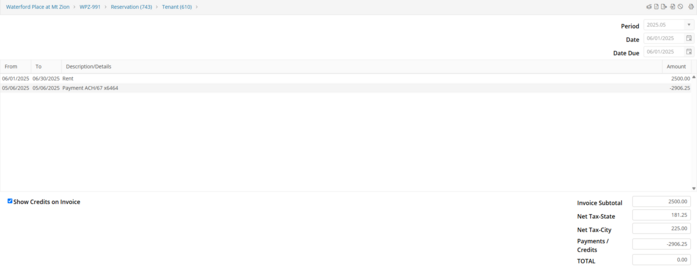
Manual Charge
Manual ACH Payment postings must always occur on the payment screen located at the bottom of the invoice.
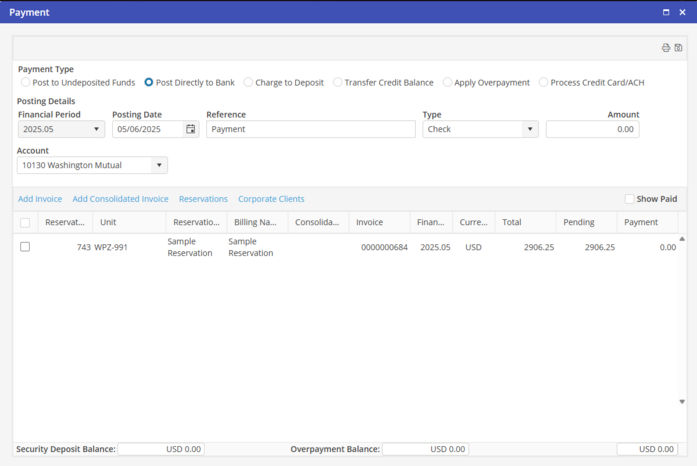
Select the Payment Type button “Process credit card/ACH"
Since this is an electronic payment method, the system will automatically enter the Period, Posting Date and Reference. This is not user changeable.

Populate the line items/enter Payment amount that will be posted.
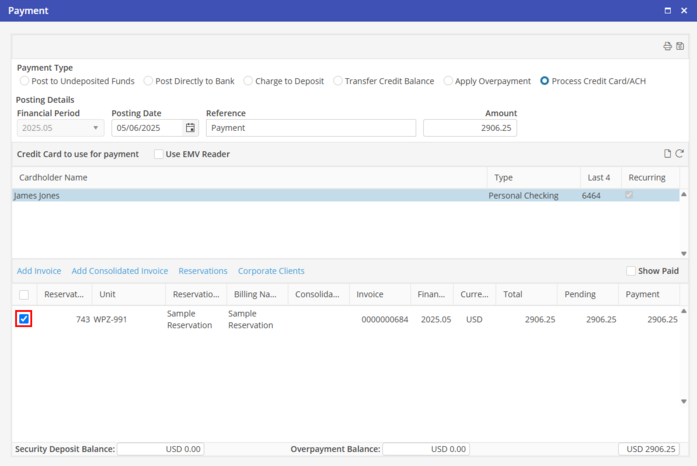
If the ACH Consent on file is indicated as recurring, you do not have to select a consent on the Payment Screen. The recurring Consent will be displayed by default.
To use a different ACH Consent that is not marked as recurring, or select an ACH Consent if none are marked as Recurring, click on the payment method you wish to use.
Select the desired Consent, or click  to add a new ACH Consent from the Payment screen.
to add a new ACH Consent from the Payment screen.Click  to post the ACH payment.
to post the ACH payment.An Authorization Confirmation dialog box will appear. If you would like to continue posting the ACH payment, click to continue. This is the last chance to cancel the payment before it processes.
to continue. This is the last chance to cancel the payment before it processes.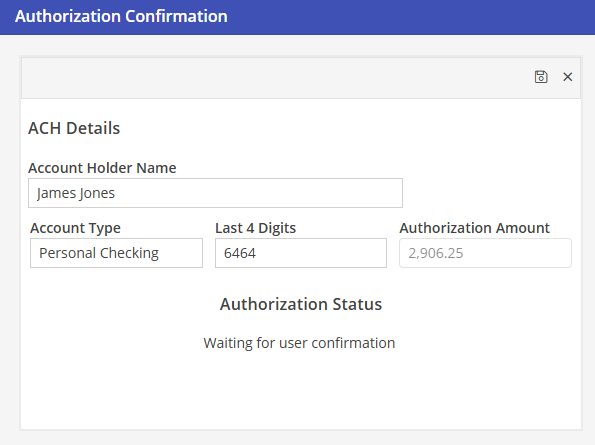
An Authorization Confirmation box will appear, indicating that the transaction has been submitted. This does not indicate that the transaction will be approved by the account issuer’s bank. ACH transactions can take up to five days to complete. In this screen, you can chose to print a copy of the authorization or close.
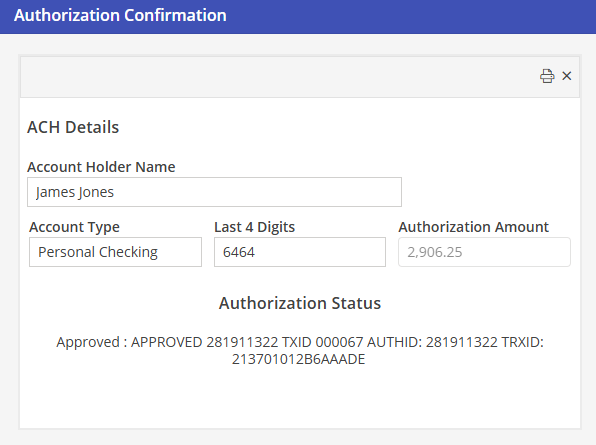
Once the Authorization Confirmation screen has been closed, the user will be returned to the Invoice Activity screen and the ACH Payment details will be shown.