
Properties Visibility
Visibility by Properties associates a Document Template with a Property or multiple Properties. This might be necessary when a specific Property requires that their sublease agreement be signed, or that a background check be performed on all residents at their Property.
To use Property Visibility, Visibility by Market must be enabled. To enable Visibility by Market, Document Templates must be populated under Settings>Program Settings>General>Visibility. Once Document Template visibility is enabled, Markets must be selected on the Document Templates for them to appear in the Reservation Tree. For this reason, it is recommended that this option ONLY be selected when no users are in the application.
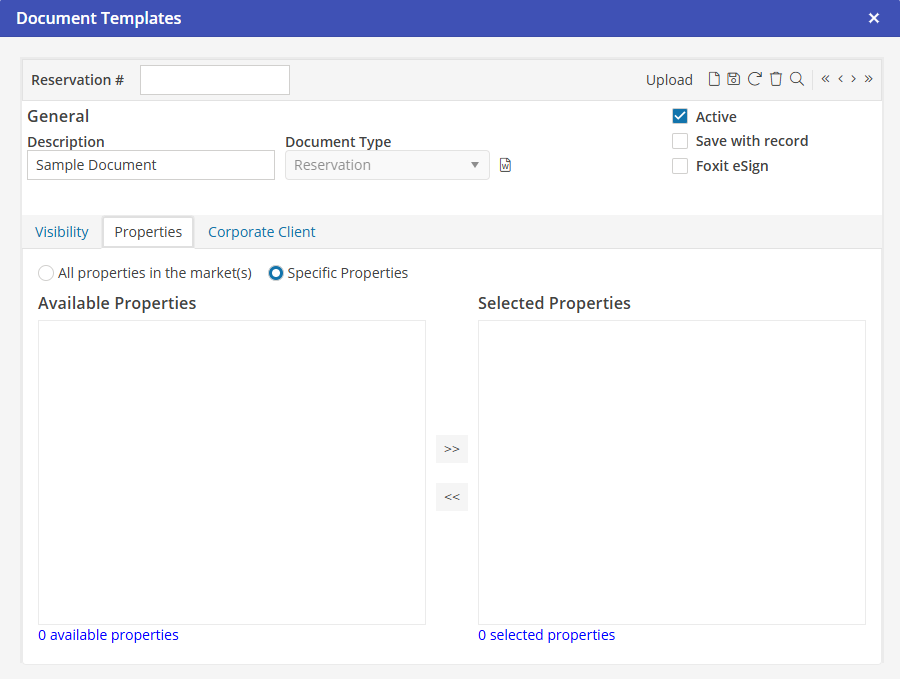
Add Property Visibility
Search for the Document template after all document creation is complete. Click on the Properties tab. By default, “All properties in the market(s)” will be populated. This means that all Properties that are in the Markets selected on the Visibility tab will include this Document Template. To select individual Properties, populate the “Specific Properties” option. This will remove all Properties from this Document Template.
All Properties that are in the Markets selected on the Visibility tab will be included in the “Available Properties” list.
Select a Property that should be included in this Document Template. Choose  to move the Property to the “Selected Properties” list.
to move the Property to the “Selected Properties” list. Remove Property Visibility
Search for the Document template to edit. Click on the Properties tab.
All Properties that are in the “Selected Properties” list include this Document Template.
Select a Property that should not be included in this Document Template. Choose  to move the Property to the “Available Properties” list. This Document Template will no longer be accessible for this removed Property.
to move the Property to the “Available Properties” list. This Document Template will no longer be accessible for this removed Property.