Rule Group
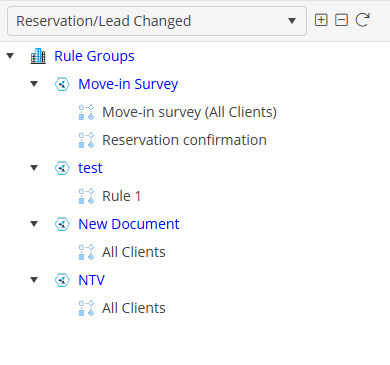
A Rule Group is a header or grouping mechanism that is used to organize similar Rules together. A Rule Group might be by Corporate Clients or, by documents that will be sent with the emails; Arrivals, Departures, Etc.
A Rule Group must be added prior to adding a Rule and Rule If Conditions.
Add a Rule Group
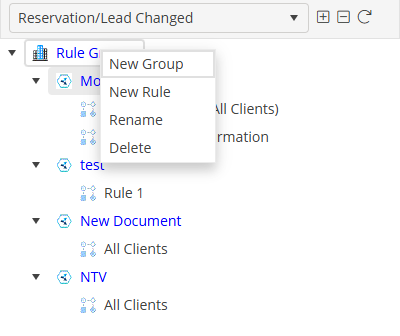
To add a new Rule Group, right click on “Rule Group” or right click on an existing Rule Group in the Rule Groups Tree. Select the option “New Group”.
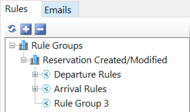
This will add a new Rule Group. The number after the new Rule Group will indicate which Rule Group it is.
Rename a Rule Group
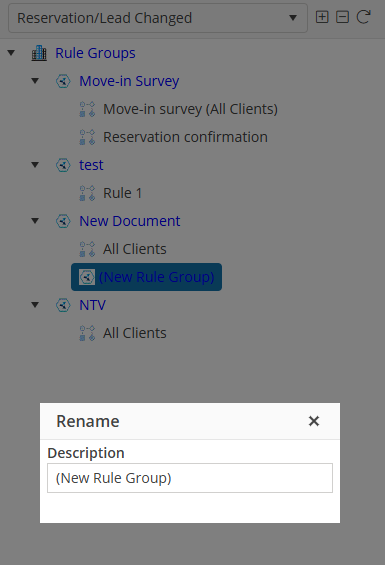
To rename a Rule Group, right click on the Rule Group and select “Rename”. Note: the default Rule Group “Reservation Created/Modified” may not be renamed.
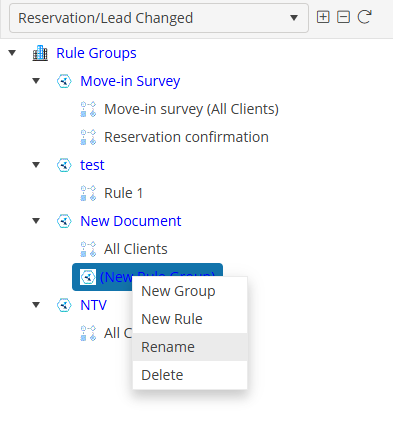
This will place the Rule Group name in edit mode to allow for edits. When complete, click “Enter”.
Delete a Rule Group
To delete a Rule Group, right click on the Rule Group and select “Delete”. Note: the default Rule Group “Reservation Created/Modified” may not be deleted.
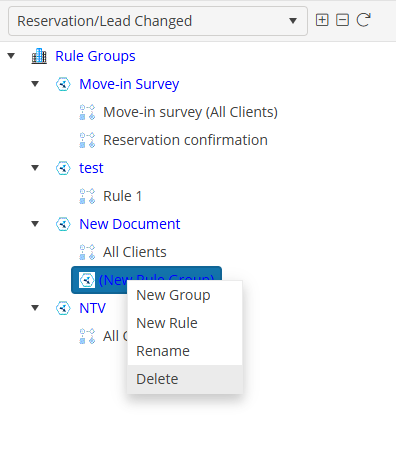
A prompt will appear asking “Are you sure you want to delete this group and all of its groups and rules?” Click yes to continue the deletion process. Click No to cancel the deletion process.
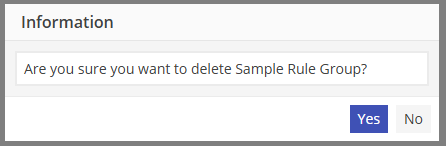
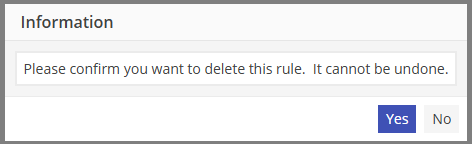
A final prompt will appear “Please confirm you want to delete this rule. It cannot be undone.” Clicking yes will delete the Rule Group. Click No to cancel the deletion process.