
Email Profiles
The Rules Engine allows for multiple Email Profiles. This will allow emails to be sent from multiple accounts which could be associated with different companies. Or, specific emails may be grouped with a specific Email Profile.
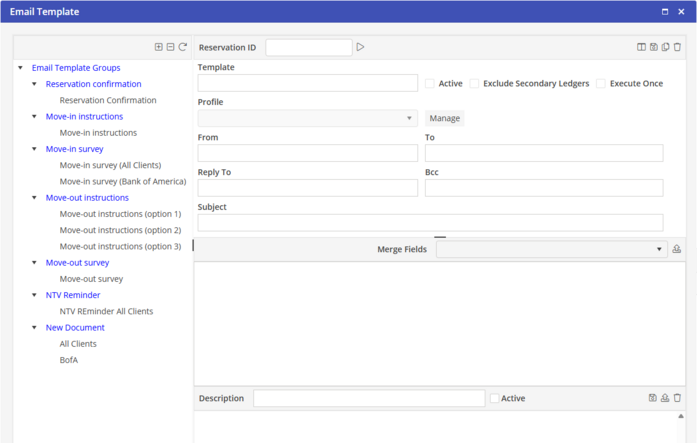
Before emails may be sent from the Rules Engine, at least one Email Profile must be created. To get to Email Profiles, click on the Emails icon of the Rules Engine 
The Email Template page will open. Next, click on 'Manage" next to Profile.
New
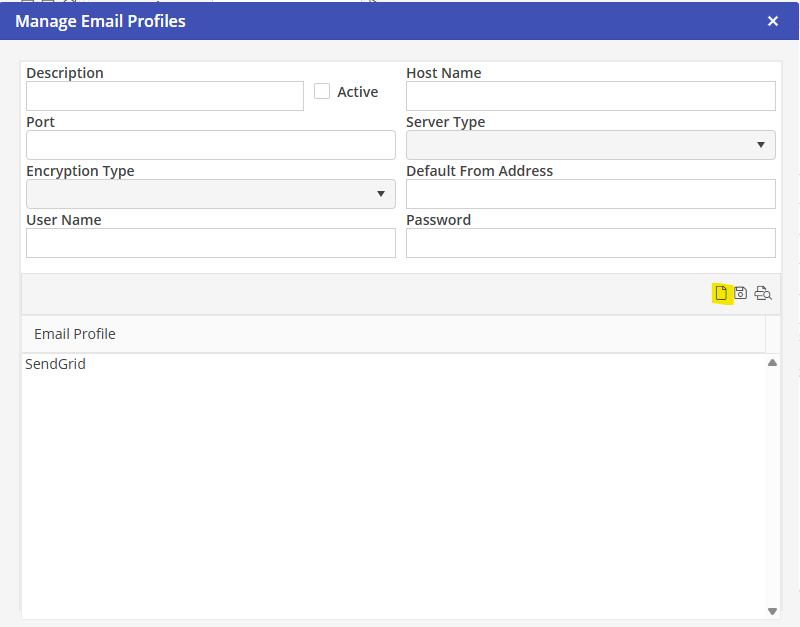
Click New icon on the Manage Email Profiles screen.
Description
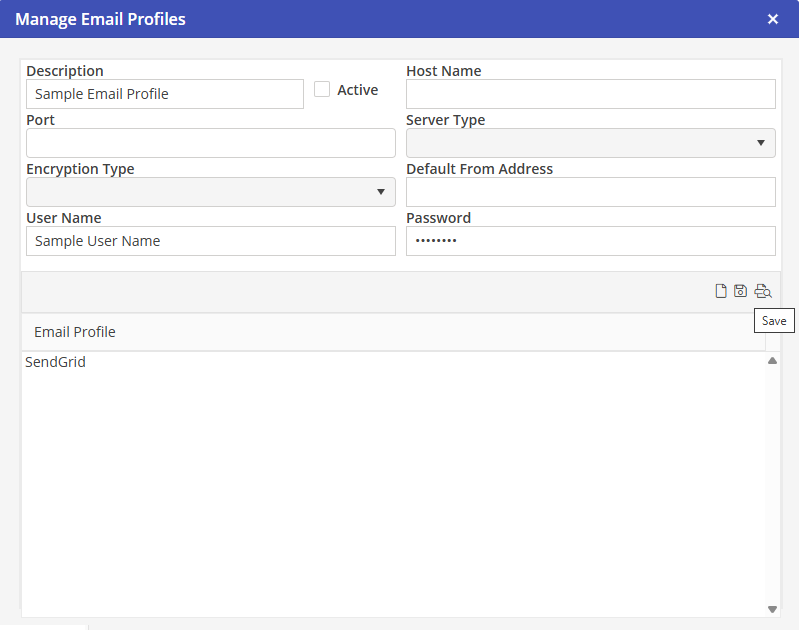
Give the Email Profile a name. The name will be selected when adding and Email Profile to an Email Template.
Server and Connection Details
Populate as needed with the email account details.
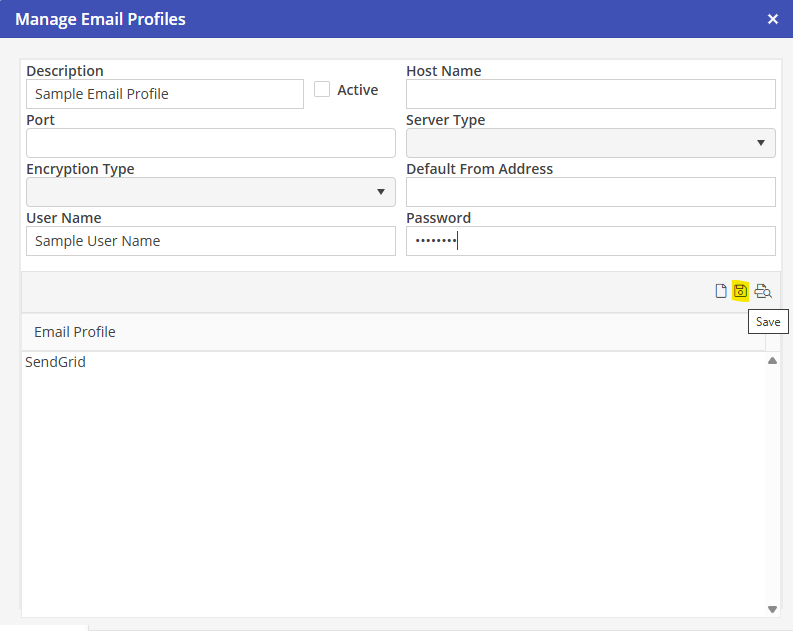
Click Save on the toolbar to save the Email Profile. After clicking save, the toolbar will indicate that the profile was saved.
Edit
To edit an existing Email Profile, select the profile from the list at the bottom. Make adjustments as required. Click Save on the toolbar to save the Email Profile. After clicking save, the toolbar will indicate that the profile was saved.
Test
To test an existing Email Profile, select the profile from the list at the bottom. Next, click Test on the toolbar.
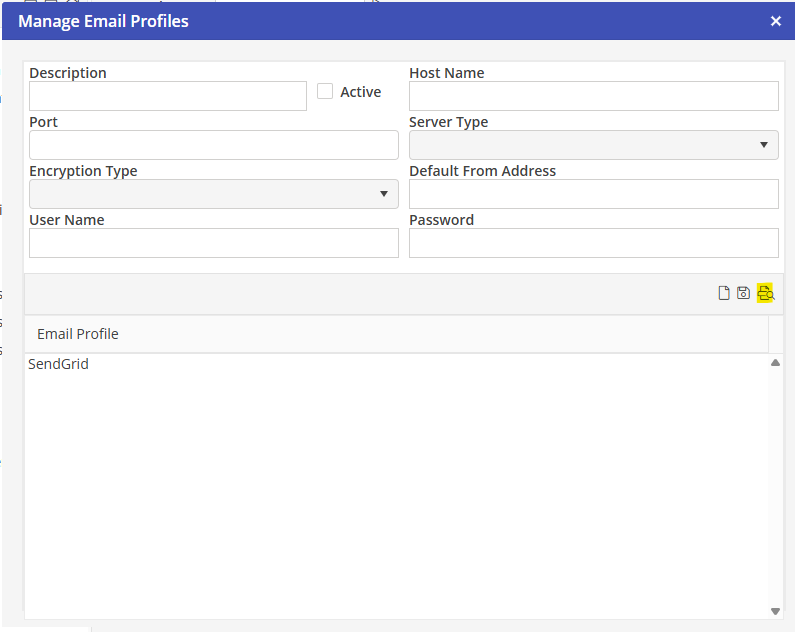
This will open a Test dialog box that will auto-populate with the Default From Address. Enter the To Address and click "Submit"
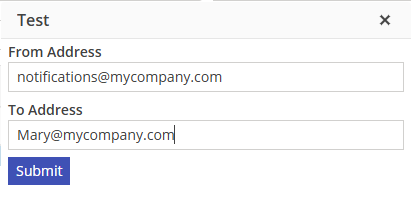
If an incorrect or blank email address was entered, a banner will appear at the top of your screen.

Once the email process has completed, the banner will indicate that the test was successful.

A test email should be received that contains the subject “Oscar Rules Engine Test Email” with the body “This is a test message”.
