Email Templates
The Rules Engine allows for entering Email templates in plain text or in HTML. The Rules Engine will auto detect the type of data contained in the email body and process accordingly. Either type or copy and paste the email body into the Template. You may create your own HTML Email Templates, or have your Web Developer work on the Email Templates, or Software Answers development team can assist in developing the creation of HTML Email Templates. If you plan on creating your own HTML templates, a real time HTML editor such as http://htmledit.squarefree.com/ is a great resource.
Merge Fields
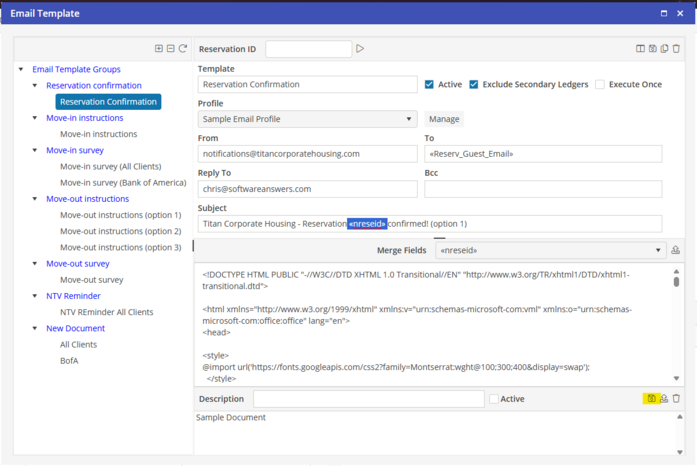
Merge Fields may be entered into any of the Address, Subject or Body field of the Email Templates. The Merge Fields list will utilize the standard Merge Fields associated with the Oscar Enterprise database.
To insert a Merge Field into the Address, Subject or Body field of the Email Templates, place your cursor where the Merge Filed should appear. Click the dropdown arrow on the Merge Fields list to select a Merge Field.

The Merge Field will appear in the selected field. When the Email Template is emailed, the system will merge the Email Template with the associated Reservation. When complete with the Email Template, select “Save” to save the Email Template.
Test Email Template
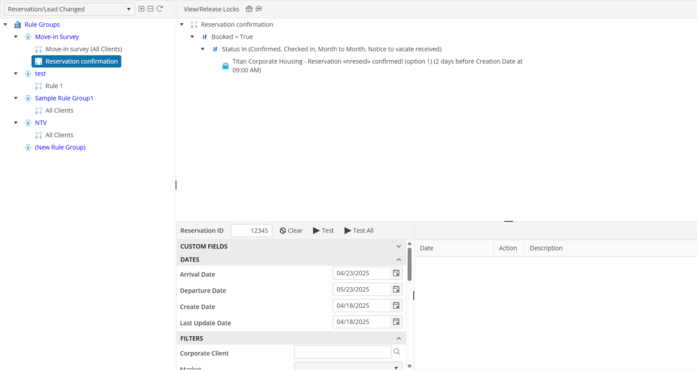
To test an Email Template that has been saved, select the Email Template from the Email Template Groups Tree. Enter the Reservation number that you would like to use for testing purposes. Click the “Test” button. The Rules Engine will populate the Email Template with the details from the associated Reservation. Then email to the associated email addresses.
Attached Files
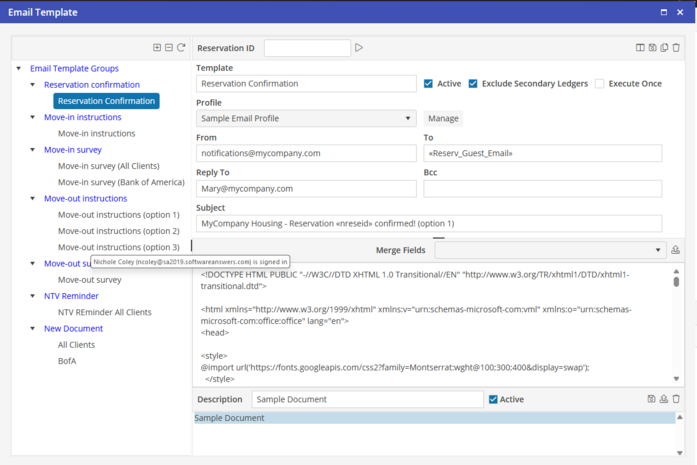
Merge Documents may also be associated with an Email Template. These will go out with the scheduled Email Template and appear as an attachment on the Email. The Attached Files may also contain Merge Fields that have manually been added. These will be populated when the Email Template is sent.

To associate a file as an Attached File, click on the “Browse” icon at the bottom of the Email Template screen. This will open up a Windows Browser screen. Locate the document and select Open at the bottom of the Windows Browser screen.
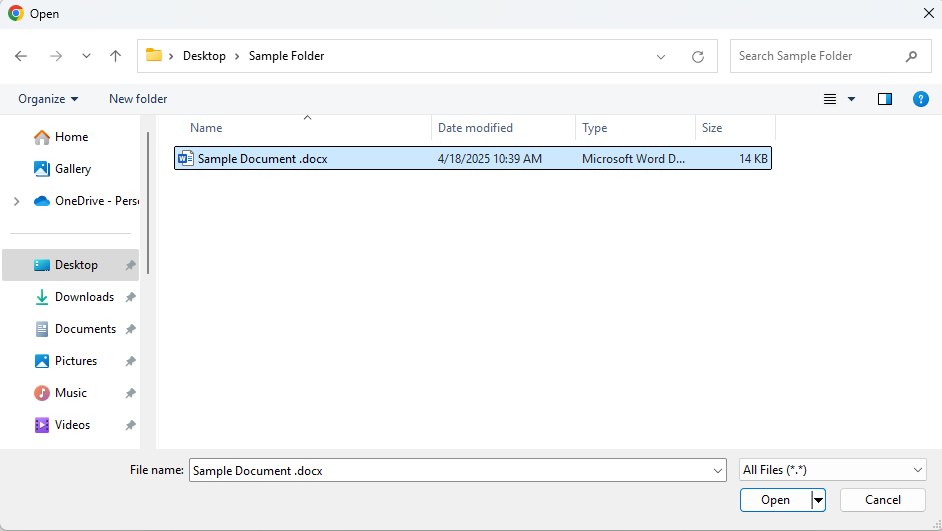
This will load the document into the Attached Files for this Email Template. Make sure to populate the Active indicator. This will make all documents contained in the Attached Files window active.
Delete Attached File
To remove an Attached File from the Attached Files window, select the document.
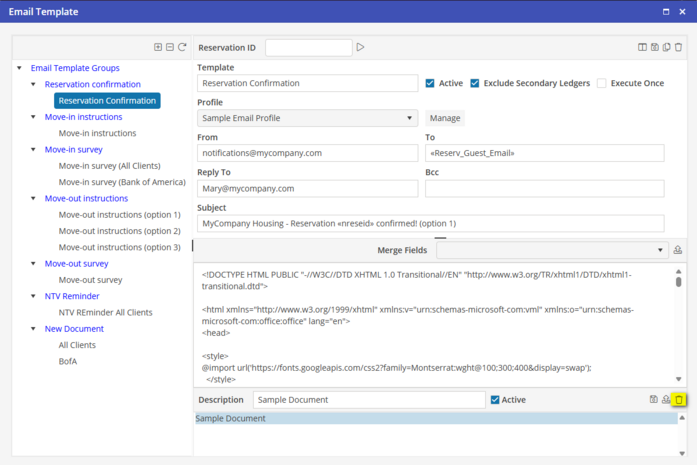
Click the “Delete” button to delete the Attached File.
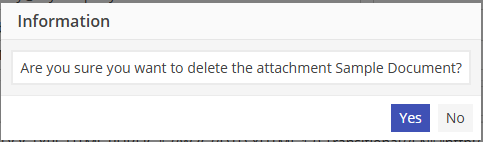
A prompt will appear asking “Are you sure you want to delete the attachment XXX?” Click yes to continue the deletion process. Click No to cancel the deletion process.