
Adding Custom Fields
From the Custom Fields dropdown, select the area of the Application where the Custom Fields will be located.

Select the Card that you would like the Custom field to appear on.

This will open up the Custom Field Control Editor screen.
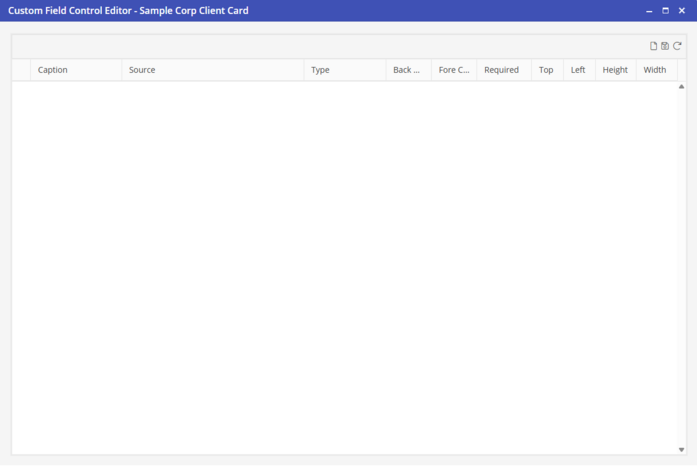
Click the 'NEW' icon to add the Custom Field. Click within each field (Caption, Source, Type, Background Color, & Fore Color) to edit. *Note: the Required, Top, Left, Height, & Width fields are entered when the Custom Field is created and can not be changed in the editor screen.
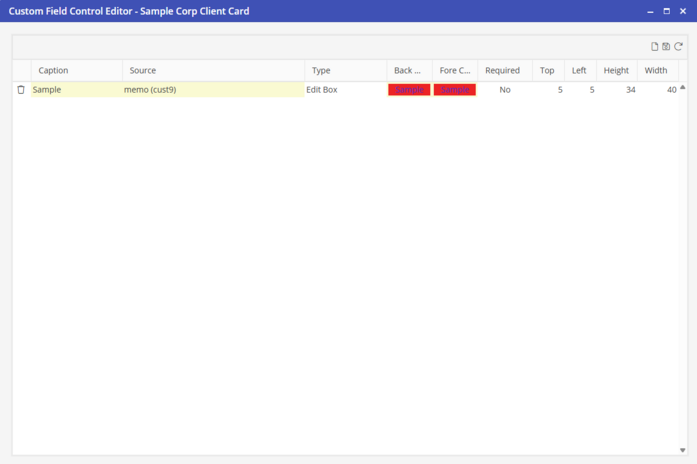
After you have made your entries, select the Save icon in the upper right corner of the screen.