
Create a Task
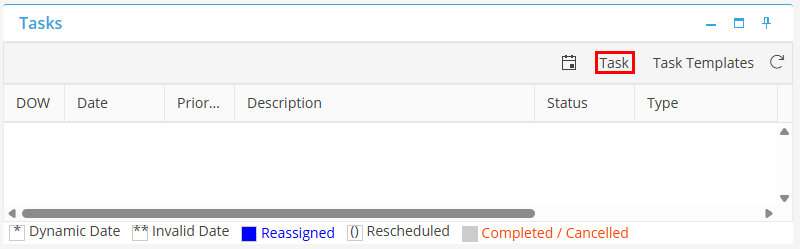
From a Reservation, Unit Vendor, or Corporate client, click Task from the Task Card.
If in Task Schedule, click the  icon in the top right corner of the screen.
icon in the top right corner of the screen. 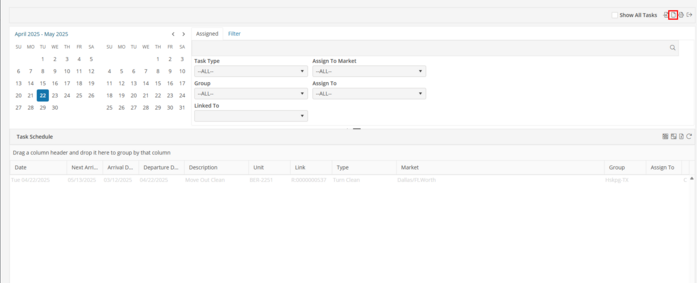
Link To
Choose Reservation, Unit, Vendor or Corporate Client to link the task from the Task Scheduler. If opened from a Reservation, Unit, Vendor or Corporate Client this field will automatically be filled in with the corresponding record.
Priority
Choose High, Medium, or Low.
Description
Enter task specifics not identified in the task type. The Description displays in the Task Card within the Reservation, Unit, Vendor, or Corporate Client.
Rep. Needed on site
Check to indicate if a representative should be at the task site. Task displays in blue on the schedule.
Task Type
Select the task type (as defined in Settings > Program Settings > Other Filters > Task Defaults)
Assign to Market
Select a market. Allows the User to assign a task (if user has rights) to a specific market. If the Market field is changed after a task is created, the user will be prompted to select a new Group and Assignee (if applicable).
Group
Select a group (if applicable). If the Group is changed after task is created, the user will be prompted to select a new Assignee (if applicable).
Assign to
Select an assignee (if applicable)
Frequency
Choose the frequency of the task.
Every
Choose the appropriate number.
Start On
Select the appropriate start behavior. Select “Anniversary Date” for single or repeating task. To choose a specific day, choose “Day of the Week”. After “Day of the Week” is selected, an additional box will appear allowing the User to select Monday – Friday.
Start & End
Select the appropriate start and end date.
+ / -
When selecting dates that are NOT “Fixed Dates” the user has the option to request that the task be performed / carried out a “##” of days before or after the associated Start or End Dates.
By selecting the Reservation Arrival and / or Departure Date, the Task Scheduler maintains changes to arrival and / or departure dates automatically. A user will not have to remember to edit the dates associated with the task if the arrival and / or departure date change.
Ascending / Descending
Use to sort the task instances in ascending or descending order after saving the Task. This feature is used on Tasks with multiple instances
Show Notes
Displays notes within the task instances. This feature is used on Tasks with multiple instances