
Definition Vs. Instance
Task Definition
Defines the tasks Who, What, When, Where & How often and schedules all instances of a task. To view the Task Definition, click on the task within the Task Card.
Task Instances
These are the number of occurrences, or how often a task is to be performed or carried out. Review Task Details in the location where the Task was created.
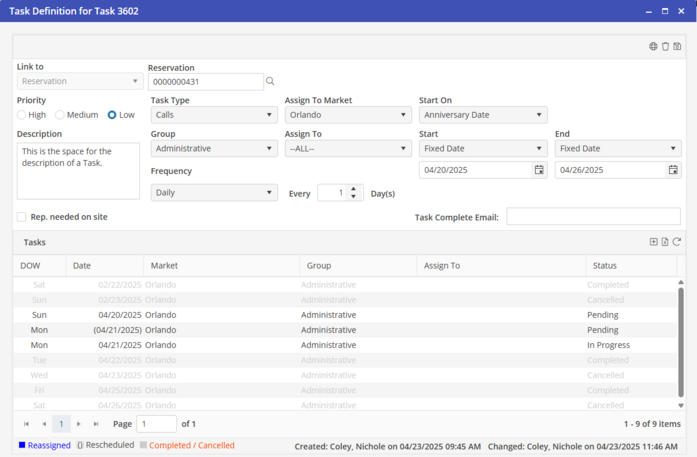
Every instance for the task selected is listed in this card, along with its Status. To edit a single instance, double-click on the instance line.
Color legend reflects changes/edits made to an instance:
§ Reassigned instances appear blue.
§ Rescheduled instances will have parenthesis around the date (03/04/2009).
§ Completed/Cancelled instances will appear gray.
Definition
The Task Definition is comparable to a parent. Each instance associated with the Definition could be considered a child. The child “inherits,” characteristics of that parent (Who, What, When, Where & How often). We have one parent and many children in the case of a Recurring task. We have one parent and one child in the case of a Non-recurring task. If an associate edits a specific field (example: date) within a single instance of a Recurring task, that field within the instance effectively becomes an “orphan.” If the Task Definition (Parent) is later changed, the edited instance (the one with the changed date) will automatically update all fields except the field that was previously modified (date field will not change).
|
Task Type
|
Examples
|
|
Non-recurring
|
Switch Telephone Number
Deliver New Dryer
|
|
Recurring
|
Housekeeping
|
Edit an Instance of a Recurring Task
Click on the specific task within the Task Card. When the system displays the Task Definition screen, double click on the Instance in the Instances Panel. The User can edit the following fields: Date, Status, Assign to Market, Group and Assign to. Notes can also be added here by clicking  on the indicator. Editing any of these fields will only affect this instance. Future and past instances will not be affected.
on the indicator. Editing any of these fields will only affect this instance. Future and past instances will not be affected.Edit an Instance of a Non-Recurring Task
Click on the task within the Task Card. When the system displays the Task Definition screen, double click on the Instance in the Instances Panel. The user can edit the following fields: Status, Assign to Market, Group, Assign to, and Notes. The User must edit the Date field from the Task Definition screen only. This field does display on the Edit Instance screen, but it is protected.
|
|
Edit an Instance
|
Edit the Definition
|
|
Non-Recurring Task
|
User can edit the following fields:
· Status
· Assign to Market
· Group
· Assign To
· Notes
Note: The Date field displays, but is protected from editing. The Start field can only be edited on the
Task Definition.
|
User can edit the following fields:
· Link to
· Priority
· Description
· Rep. Needed on Site
· Task Type
· Assign to Market
· Group
· Assign To
· Frequency
· Every
· Start On
· Day [if Start On = Day of Week]
· Start
· +/-
|
|
Recurring Task
|
User can edit the following fields:
· Date
· Status
· Assign to Market
· Group
· Assign To
· Notes
|
User can edit the following fields:
· Link to
· Priority
· Description
· Rep. Needed on Site
· Task Type
· Assign to Market
· Group
· Assign To
· Frequency
· Every
· Start On
· Day [if Start On = Day of Week]
· Start
· End
· +/-
|