
CustX - Reservations
Location: Management > Other > Custom Export Module >> Reservation Exports
Export Name
Select the export to run. All created custom Reservation export templates will be available for selection here.
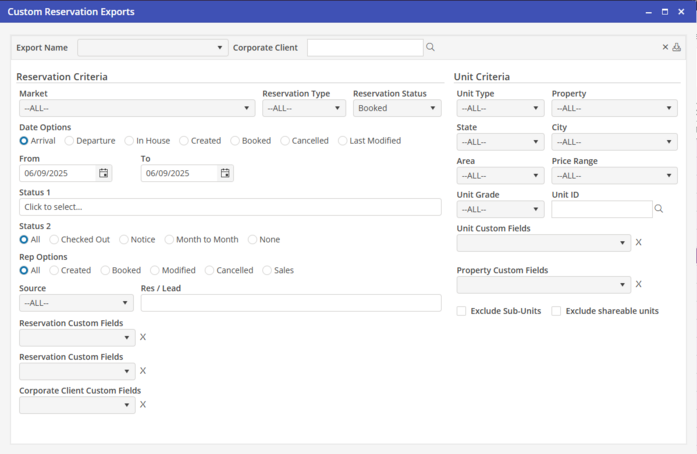
Corporate Client
Select the Corporate Client for the export here. If the report was made for a specific Corporate Client, and that Corporate Client was selected on the template, the Corporate Client will be auto populated here. To run the report for a different Corporate Client, select the Corporate Client here.
Reservation Criteria
Market : Select a specific Market if desired for the Export.
Date Options : Choose Arrival, Departure, In House, Created, Booked, Cancelled or Last Modified. Choose the date or date range.
Reservation Type : Select the Reservation Type. Available options are listed from Reservation Types located in Program Settings>Reservations>Types.
Reservation Status : (Ld, Den, Bkd, Canc) - Select the status of the Reservation, choosing <<ALL>>, Booked, Cancelled, Lead or Denied Lead. Default selection is Booked
Reservation Status 1 : Select the Reservation Status 1 here. These are the represented colors on the schedule board.
Reservation Status 2 : Select the Reservation Status 2 here. These are the checkboxes on the reservation
Rep Options : Choose the Type of Rep; All, Created, Booked, Modified, Cancelled and Sales. Select the associated Rep for the reservation.
Source : Choose the reservation source here.
Res/Lead No : Choose a specific reservation/Lead number here.
Reservation Custom Fields : Choose Reservation Custom Fields here. After selecting a Reservation custom field, select Equal, Like, Empty or Not Empty. Also, enter in the search keyword. It is possible to search by up to three custom fields simultaneously.
Unit Criteria
Unit Filters : Select any combination of the five Unit filters here.
Unit : Select a specific Unit here.
Unit Custom Fields : Choose Unit Custom Fields here. After selecting a Unit custom field, select Equal, Like, Empty or Not Empty. Also, enter the search keyword.
Property Custom Fields : Choose Property Custom Fields here. After selecting a Property custom field, select Equal, Like, Empty or Not Empty. Also, enter the search keyword.
Select  to export report.
to export report.