
General
To set up general settings for work orders, navigate to Program Settings > Work Orders > General
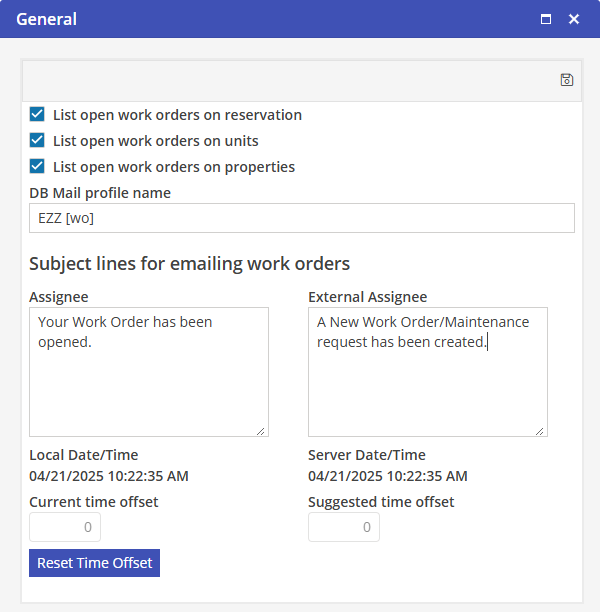
List open work orders on Reservations
To list the open Work Orders on the Reservation, populate this indicator. Once the Work Order is marked as Completed, it will be removed from the Reservation. If this option is not populated, Orion users will click on the Work Order card in the Reservation to manage all Work Orders.
List open work orders on Units
To list the open Work Orders on the Unit Tree, populate this indicator. Once the Work Order is marked as Completed, it will be removed from the tree. If this option is not populated, Oscar users will click on Manage under the Work Order node on the Unit tree to manage all Work Orders.
List open work orders on Properties
To list the open Work Orders on the Property Tree, populate this indicator. Once the Work Order is marked as Completed, it will be removed from the tree. If this option is not populated, Oscar users will click on Manage under the Work Order node on the Reservation tree to manage all Work Orders.
DB Mail Profile
Enter the name of the SQL Server Mail Profile.
Subject Lines for emailing work orders
With the default Work Order Subject lines, the Subject line will contain different text based on the stage of the Work Order; Created, Note Added, File Added, Edited, Canceled, Deleted, and Completed. If these fields are populated, this will be used as the Subject line for all Work Orders instead of the default Work Order Subject lines.
Assignee
This is the Subject line that will override the default Work Order Subject line used for the Internal Assignee.
External Assignee
This is the Subject line that will override the default Work Order Subject line used for the External Assignee.
Time Offset
For those located in a time zone separate from the hosted server, the time offset can be set to manage the timing of work order notifications being sent.