
Refund Returned ACH Transaction
To delete a returned ACH transaction, click on the Client Name / Tenant Name from the grid in the Bank Deposit screen.
The User will be prompted with the following message:
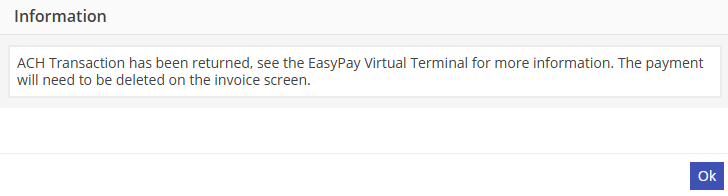
Upon clicking “Ok”, the User will be taken to the associated invoice.

Click  at the bottom of the Invoice Activity screen.
at the bottom of the Invoice Activity screen.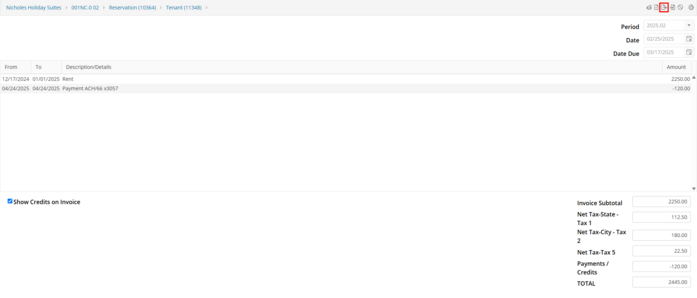
Select “To Account” and verify that the Undeposited Funds account is selected in the “Account Number” field. If the Undeposited Funds account is not displayed in the “Account Number” field, change it to Undeposited Funds.
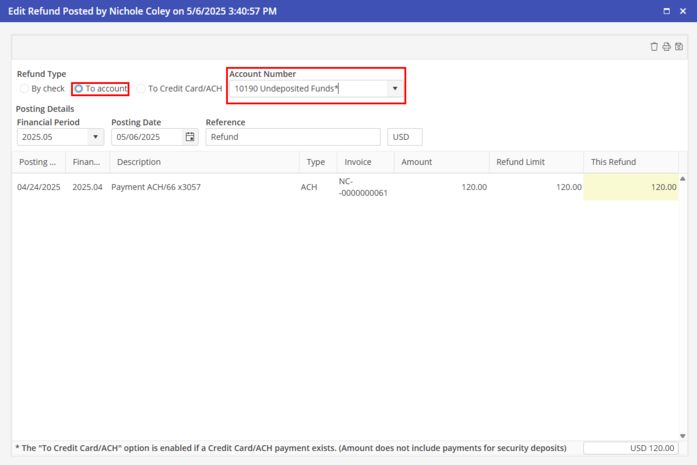
In the “Reference” field, type an appropriate description. This will show on the invoice.
In “This Refund” column, type in the amount of the refund. This should match the returned ACH payment exactly. If the refund is processed for more, the User will receive an error that gives the maximum amount the refund may be.
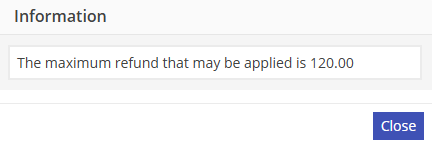
Click “Close” and type in the correct amount of the refund.
Once the correct amount of the refund has been entered, click  to save the refund.
to save the refund.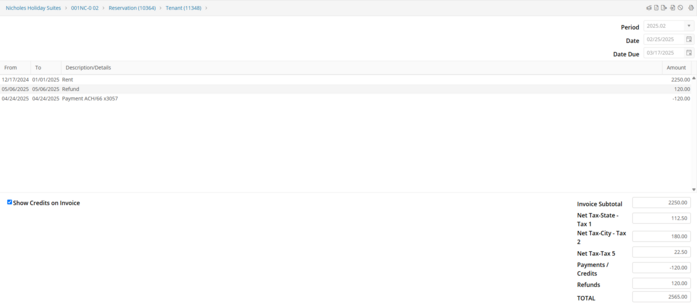
In the Reservation Activity Log screen, the refund details for the returned ACH payment will be displayed.

After the refund has been created on the associated invoice, the Bank Deposit screen must be cleared.
In the Bank Deposit screen, select  to display the undeposited items.
to display the undeposited items.Select both the returned ACH payment and the refund that was just created on the invoice.
Once selected, click to post the deposit.
to post the deposit.