Adding Images to a Document
Copy and paste
Select the image, then press “Ctrl” and “C” at the same time to copy. Press “Ctrl” and “V” at the same time to paste into the document.
Insert
To create a document with a smaller size, insert the image instead of pasting.
Save the image on a shared drive where all computers can access it, or save the logo image to the same exact file location on each terminal in the office so the image will always pull into documents from the same address location. (Example: c:\documents\pictures)
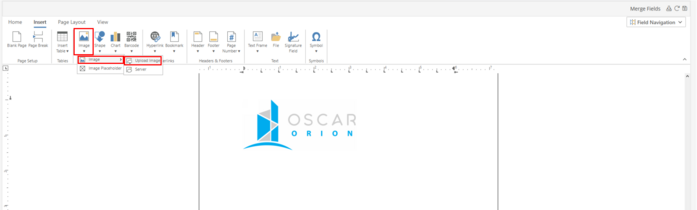
Place the cursor where the image should be placed. Click on “Insert” on the top toolbar, select “Image”, select “Upload Image”. Locate the logo image to insert.