
Task Schedule
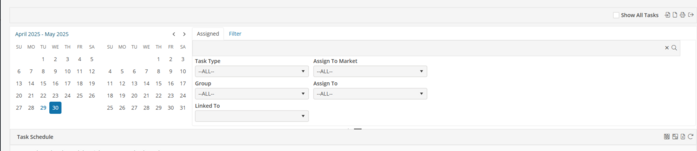
To review tasks for a date range
Click on the first day and while holding the “Shift” key, move your cursor to the last day. Click search to populate the display window with tasks for the date range selected. ALL items within the date range will appear in the display window.
To review tasks for specific days
Hold the Ctrl key while clicking on the specific days. Click search to populate the display window with tasks for the date range selected. ALL items within the dates chosen will appear in the display window.
To review tasks using specific filters
Select one or more of the thirteen (13) filters as desired (located in the ASSIGNED and FILTERS tabs). Leave all filters blank to view all the tasks scheduled for the selected date range. Click search to populate the display window with the tasks for the filters specified.
To print click  the task report screen will now appear.
the task report screen will now appear.Change the Date on a single instance of a non-recurring task
Right-click on the task in the display window and choose “Edit Task Definition”. “Edit Instance” to change the Status.
Change a recurring task definition
Right-click on the task and choose “Edit Task Definition”. Changes made to the task definition will change all previously modified instances except for the field originally modified within those instances.
Change a single instance of a recurring task
Right-click on the task and choose “Edit this Instance Only”.
Mark a Task complete
Right-click on the task in the display window and choose “mark completed” task turns gray on the schedule. The user name, date and time are also stamped in the Definition Notes.
Cancel a single instance
Right-click on the task and choose “Edit this Instance Only”, change status to “Cancelled”.
Delete a recurring task
Right-click on the task and choose “Edit Definition”, then click “Delete”